


Chasing a locked 60 FPS on a phone that didn’t cost flagship money? You can get there — no upgrade, no cash, just the right settings and a few smart habits.
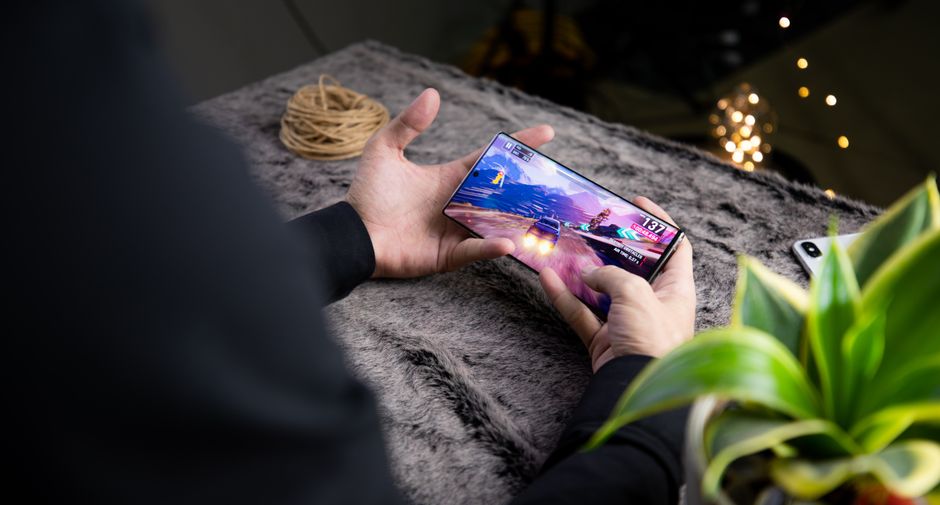
What “Smooth 60” Actually Demands From a Mid-Range Phone
When we say mid-range, we’re talking Snapdragon 6-series and 7-series, Dimensity 6000/7000 chips, 6 to 8GB of RAM, and a 90Hz or 120Hz panel. These phones absolutely can hit 60 FPS in most popular titles. The catch is that they run warmer and have less thermal headroom than the $900 flagships, so the real target isn’t a flashy peak of 60 — it’s a stable 60 that holds through a full match.
This is where frame pacing beats raw numbers. A phone that sits at a rock-steady 58 with no hitching will feel dramatically smoother than one that bounces between 45 and 60. Those dips are what you feel as micro-stutters right when you flick to aim, and they cost you fights far more than a slightly lower average ever would.
The other thing nobody warns you about is thermal throttling. Your settings might look flawless in a five-minute casual game, then fall apart in the twentieth minute of a ranked grind once the chip heats up and downclocks. So you’re not tuning for a quick test — you’re tuning for headroom that survives a long, sweaty session.
Keep that in mind and one rule falls out immediately: the biggest lever you have is render resolution, not the fancy effects. Fix that first, and everything else is fine-tuning.
The Graphics Options That Quietly Eat Your Frames
Start with resolution or render scale. If a game offers a slider, drop it to around 0.8 to 0.9, or pick the “Balanced” preset instead of “HD.” This is the single highest FPS-per-pixel trade you’ll ever make: on a six-inch screen you can barely see the softness, but your GPU suddenly has way less to draw every frame.
Shadows are the next culprit. Real-time dynamic shadows are brutally expensive on mid-range GPUs, and they’re the first thing I set to low or off in every shooter. You lose almost nothing competitively — arguably you gain visibility — and you claw back a chunk of frames instantly. Same story with reflections if the game exposes them.
Then kill the post-processing fluff. Turn off motion blur (it hides enemies and burns performance), switch off depth of field and bloom, and drop MSAA anti-aliasing to off or a light FXAA if that option exists. These effects add cinematic polish that means nothing in a firefight and everything to your frame budget.
Textures are the pleasant exception. Texture quality leans on RAM more than raw GPU muscle, so if you’ve got 8GB you can often leave textures at high and keep the game looking crisp. Trim particle and effect density instead — fewer explosion sparks and smoke volumes is a quiet, painless win.
Dialing In the Big Titles — Concrete Settings
For BGMI and PUBG Mobile, “Smooth” graphics paired with “Extreme” or “Ultra” frame rate is the classic 60 FPS recipe on mid-range hardware; if it runs hot, step to “Balanced” plus “Ultra.” Turn anti-aliasing off and shadows off. Skip any so-called GFX tool that promises to unlock more — those modify the game package and can get you banned.
Call of Duty Mobile responds best to Graphics Quality on Low or Medium with Frame Rate set to Max or Very High. Then hunt down and disable Depth of Field, Bloom, Realtime Shadows, and Ragdoll physics. Leave anti-aliasing on only if your frames still hold — on tighter phones, off is safer.
Genshin Impact, Wuthering Waves, and the Honkai games are a different beast — they’re genuinely heavy. To hold 60 on mid-range, set render resolution near 0.8, shadows off, effects to medium, and motion blur off, and cap the frame rate at 60 rather than 120. Even then, expect some dips in dense open-world zones once the chip warms up; that’s normal, not a settings failure.
MOBAs like Mobile Legends and Wild Rift are the easy mode here. Turn on High Frame Rate mode, disable HD graphics and shadows, and most mid-range phones cruise at a locked 60 with room to spare. Because these titles are lighter, you can afford to push texture quality back up if you want the eye candy.
Fixes That Live Outside the Graphics Menu
Half the battle is thermal. Pull the case off during long sessions, and never charge while you play — the charger is a huge heat source that will throttle you fast. A cheap clip-on cooler fan makes a real difference for ranked grinds, and simply playing in an air-conditioned room instead of under a blanket buys you frames for free.
Housekeeping matters more than people think. Close background apps, restart the phone before a ranked session so nothing’s leaking memory, keep at least 20 percent of your storage free, and clear the game’s cache occasionally. Crucially, turn off battery saver while gaming — it deliberately caps CPU and GPU speed, which is the exact opposite of what you want.
Dig into your phone’s built-in game mode too — Game Space, Game Turbo, or whatever your brand calls it — and set the game to a performance or high-FPS profile. If your display is at 120Hz but the game caps at 60, consider forcing 60Hz to cut heat and battery drain with zero gameplay loss. Some phones also hide GPU driver updates in settings; grab them, since they can add a few honest frames.
One thing to skip entirely: third-party “booster” or “GFX optimizer” APKs. The overwhelming majority are ad-stuffed placebo apps that do nothing but track you. The real optimizer is your own settings menu and your phone’s official performance profile.
Why You Never Have to Pay or Cheat for Performance
Here’s the honest truth the scammers don’t want you to know: the highest frame-rate tier is already free in every one of these games. Yet people still fall for “FPS unlocker” mods and GFX tools that modify game files. Anti-cheat systems like the one in BGMI flag those altered packages, and the reward for your trouble is a banned account — a permanent price for a temporary trick that usually doesn’t even work.
The same goes for any site promising a “free gems generator” or a magic tool that boosts your performance or currency. Those are phishing and malware operations, plain and simple. They exist to harvest your login or drop adware on your device, and they never deliver a thing. No app on earth adds real FPS — frames come from your silicon and your settings, full stop.
If you want your account to progress faster the legit way, the tools are already built in: in-game events, daily login rewards, the free track of the battle pass, and legit reward apps like Google Opinion Rewards or Mistplay that pay a little store credit for surveys and play time. Be realistic — that’s a few bucks a month toward a skin, not a jackpot, and it’s earned honestly.
Meanwhile, the smoothest upgrade you can give yourself is completely free. A stable 60 FPS means cleaner aim, quicker reactions, and fewer deaths to stutter that were never your fault. That’s a genuine competitive edge, and it costs nothing but ten focused minutes in the settings menu.