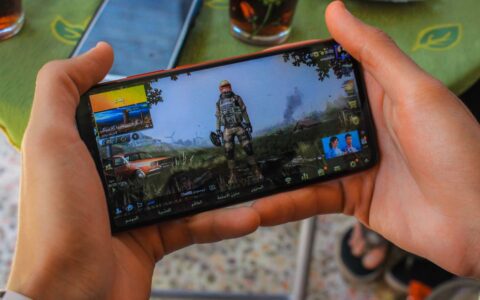

A controller can transform how Call of Duty Mobile feels in your hands — smoother movement, cleaner peeks, less thumb clutter. Here’s how to set one up and tune it right.
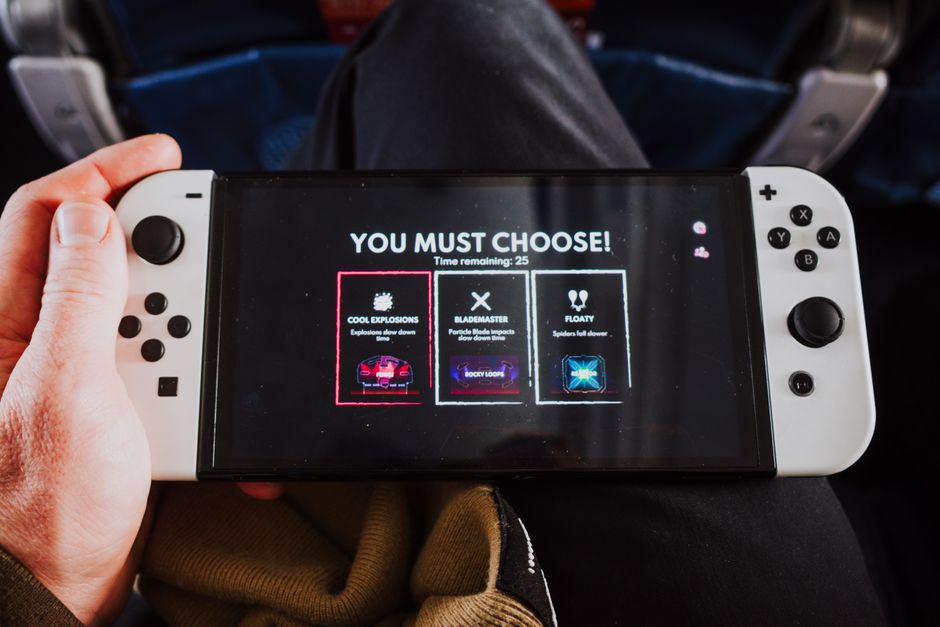
Which controllers actually work with CoD Mobile
Call of Duty Mobile plays nicely with the two most common Bluetooth pads: the Xbox Wireless Controller (any model from 2016 onward with Bluetooth) and Sony’s DualShock 4 and DualSense. If you already own a console, you likely have a compatible controller sitting on your couch right now — no extra purchase needed, which keeps this a genuinely free upgrade rather than another thing to buy.
Clip-on controllers that wrap around your phone are the other popular route. The Backbone One, Razer Kishi, and GameSir X2 all present themselves to the game as a standard gamepad, and because most of them connect through your phone’s USB-C port, they add far less input lag than Bluetooth. That wired connection matters more than the brand name in a game this fast.
Before you commit, check two things. First, that your phone’s Android or iOS version is current, since older builds sometimes drop Bluetooth controller support. Second, that your grip or clip actually fits your phone with its case on — a surprising number of Kishi and Backbone complaints come down to a bulky case, not the controller itself. A cheap phone stand or a clamp mount works fine if you prefer a separate pad.
Pairing and connecting your controller step by step
Pair the controller at the operating-system level first, not inside the game. On an Xbox pad, hold the pairing button on top until the Xbox logo flashes quickly, open your phone’s Bluetooth menu, and select the controller. For a DualShock 4, hold Share and the PS button together until the light bar strobes; a DualSense uses Create plus PS. Clip controllers usually just work the moment you slide the phone in.
Once your phone reports the controller as connected, launch CoD Mobile and open the Settings gear, then the Controller tab. Toggle controller support on. The game should immediately recognize the pad and swap its on-screen prompts to button icons. If it doesn’t, back out to the main menu and return — a quick refresh usually forces detection without a full restart.
If nothing registers, the fix is almost always at the phone level. Confirm only one controller is paired at a time, disconnect any Bluetooth headset that might be hogging the channel, and make sure the pad isn’t still linked to a nearby console that grabbed it first. Wired clip controllers rarely hit this snag, which is one more reason serious players lean toward them.
Dialing in your button layout and sensitivity
CoD Mobile’s controller layout is more locked down than console Warzone, so don’t expect deep remapping. Spend your time instead on the two settings that decide every gunfight: horizontal look sensitivity and ADS (aim-down-sight) sensitivity. Start both lower than feels comfortable — many players overshoot targets for a week before realizing their sensitivity was cranked far too high.
Set your hip-fire sensitivity so a full stick flick turns you roughly 180 degrees without wrist strain, then drop ADS sensitivity to somewhere around 60 to 80 percent of that. A slower aim gives you the fine control to hold a headshot line, while the faster hip sensitivity keeps you whipping around corners. Adjust in small increments and test each change in a real match, not just the settings menu.
Two more tweaks pay off fast. Hide or shrink the leftover touch HUD so your thumbs don’t accidentally trigger a screen button mid-fight, and turn on the advanced firing options if you like clean thumbstick aiming. Save your finished profile once it feels right, because a game update can occasionally reset controller settings and you’ll want to restore your numbers in seconds.
The honest truth about aim assist and matchmaking
Here’s the reality console players find jarring: CoD Mobile has never handed controllers the strong, sticky aim assist that Warzone and console multiplayer are famous for. Your reticle will not glue to enemies. Test it yourself in a practice-versus-AI match before you assume something is broken — that light or absent aim assist is by design, meant to keep controller and touch players on fair footing.
That single fact reshapes the whole tradeoff. A controller gives you smoother, more precise movement and better screen visibility because your thumbs aren’t covering the display. What it does not give you is a targeting crutch, so your raw aim has to carry itself. Plenty of skilled touch and claw players out-shoot controller users for exactly this reason, and that’s fine — pick the input that fits how your hands actually work.
Matchmaking is the other piece to understand. The game flags controller use and tends to steer you toward lobbies with other pad and gyro players, and certain competitive playlists have restricted or blocked controllers during past seasons. None of this is a cheat or a shortcut; it’s a fully supported way to play. Check the current mode rules if you plan to grind Ranked so a surprise restriction doesn’t cost you a placement match.
Practice drills and free ways to sharpen your setup
New muscle memory is the real cost of switching inputs, so budget a few days of feeling clumsy. Load Practice vs. AI and run the same drill each session: strafe left while tracking a moving bot’s head, then reverse and repeat. Ten focused minutes of that beats an hour of losing pub matches while your thumbs relearn aiming from scratch.
Battle Royale is your best free training ground because the longer matches give you dozens of low-stakes gunfights and plenty of open ground to feel out your movement sensitivity. Use it to test sensitivity changes over a full week before deciding a number is wrong. Rushing tweaks after one bad game is how players end up chasing settings forever and never building consistency.
You can fund the whole hobby without spending a cent. Log in for the daily rewards, clear the seasonal event and Battle Pass challenges you’d complete anyway, and bank the free credits and gear they drop. If you want to save toward a nicer clip controller, legitimate reward apps like Google Opinion Rewards or Mistplay pay small amounts for surveys and playtime — slow but real, and a world away from the “free CP generator” scams that only harvest your login and get accounts banned.